Delivered projects

Management apps on NocoBase and AppSheet, built around each company's own processes. Every screen here is captured from seven apps that are running for real.

300+applications delivered
150+business clients
Sample apps
Official NocoBase Partner
Watch the tour Inventory management
Real screenshots of the selected app, split into layers: everyone sees just their own work, figures update instantly, all your data in one place, automatic approvals and reminders.

Apps by industry

Each card is a real app running on sample data. Open a card to see its main screens, the problem it solves and the roles in the app.

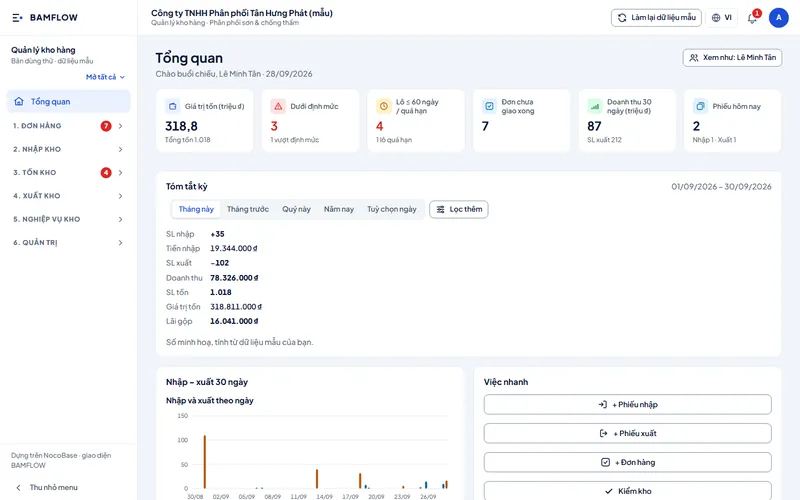
The Inventory management app on a computer: the Overview screen with stock value, items below minimum, batches close to expiry, orders not fully delivered and this month's stock in and out
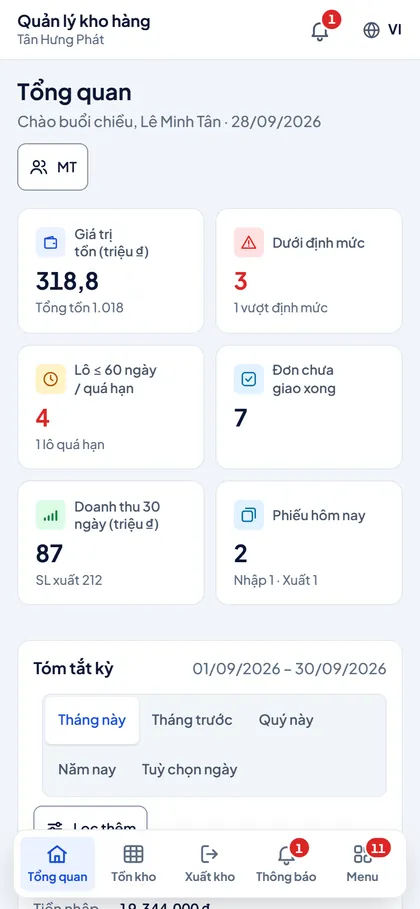
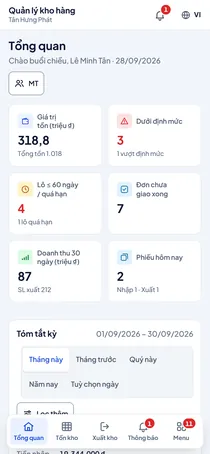
The Inventory management app on a phone: the Overview screen with tiles for stock value, below minimum, batches close to expiry, undelivered orders, 30-day revenue and today's slips

Warehousing

Inventory management

Stock in, out and on hand by batch and expiry date across warehouses, linked to orders.
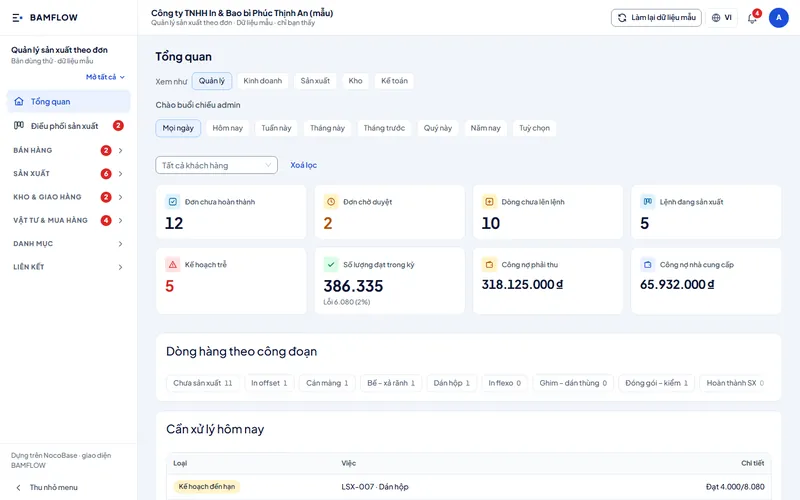
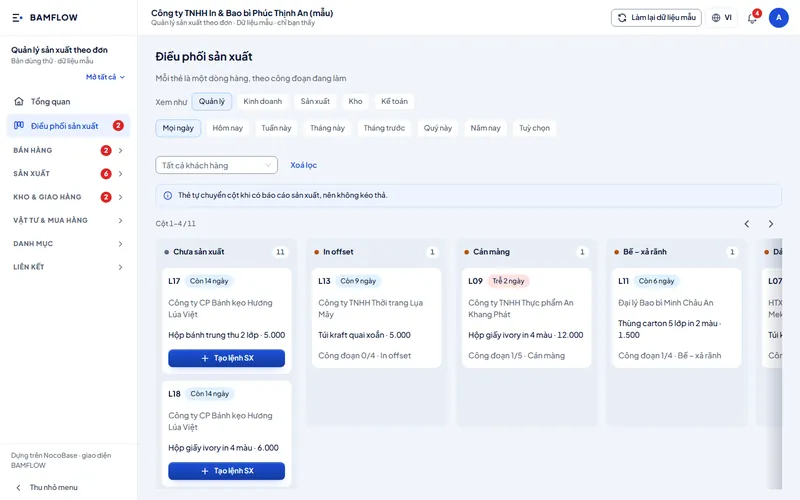
The Make-to-order production app on a computer: the Overview screen with open orders, orders awaiting approval, lines without a work order, work orders in production, late plans and receivables
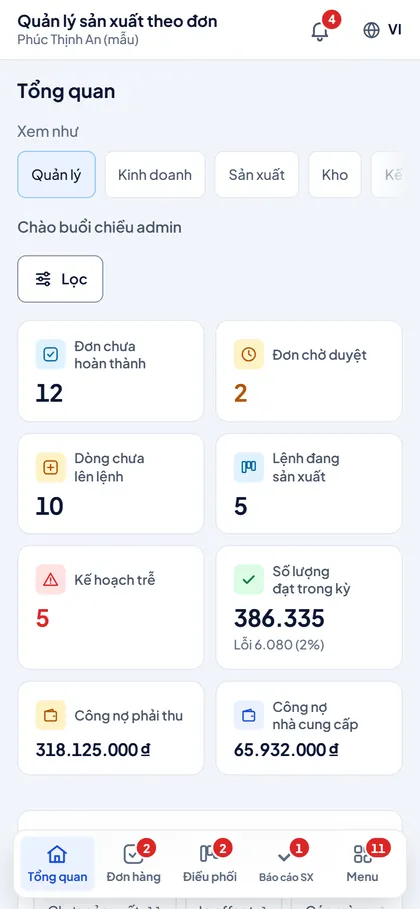
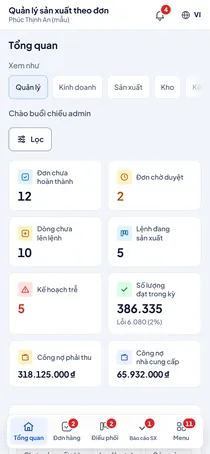
The Make-to-order production app on a phone: the Overview screen with open orders, orders awaiting approval, work orders in production, late plans, output achieved and receivables

Manufacturing

Make-to-order production

From sales order to work order, production stages, materials and delivery.

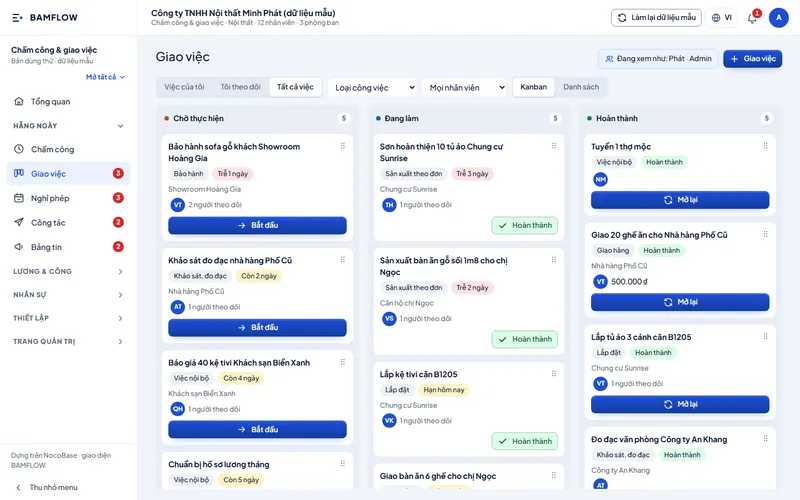
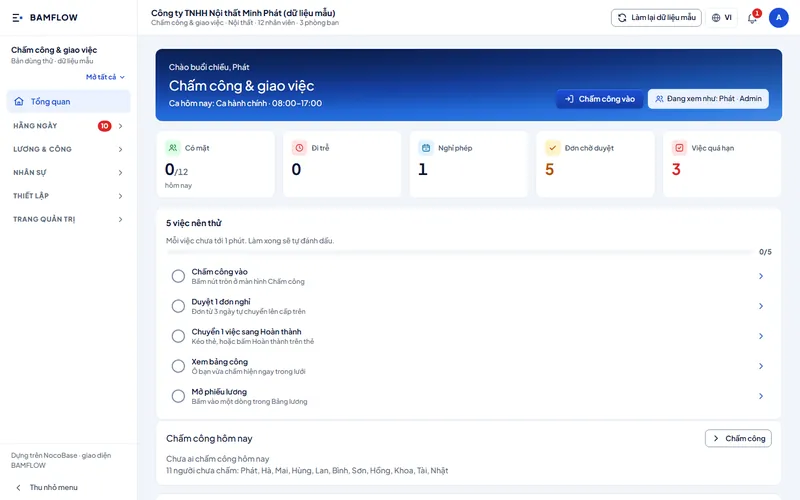
The Attendance & tasks app on a computer: the Overview screen with who is in, late arrivals, leave, requests awaiting approval, overdue tasks and a list of things to try
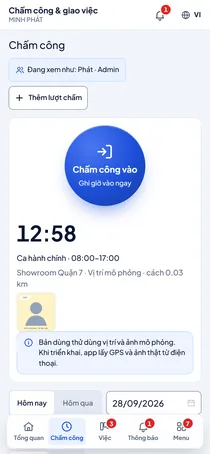
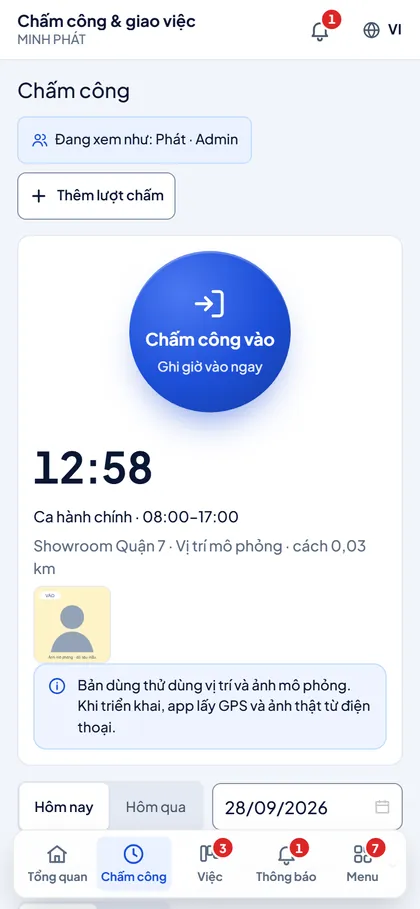
The Attendance app on a phone: a round Clock in button, the current time, the shift and a clock-in location simulated in the sample app

HR

Attendance & tasks

Clock in on the phone, assign tasks, approve leave and run payroll from days worked.

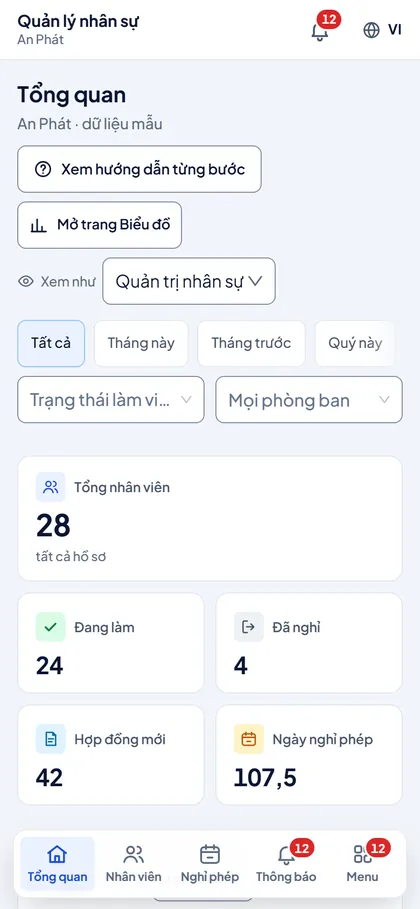
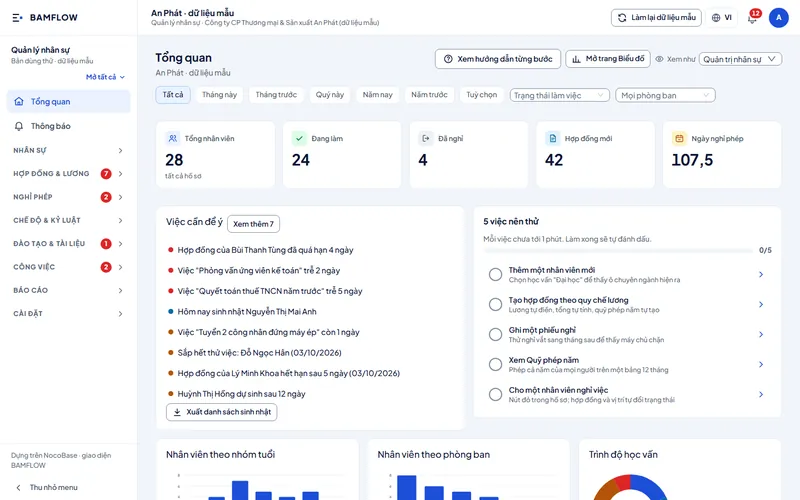
The HR management app on a computer: the Overview screen with total employees, active, left, contracts, leave days, items to watch and charts by age and department
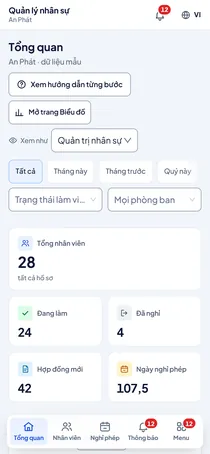
The HR management app on a phone: the Overview screen with total employees, active, left, contracts and leave days

HR

HR management

Employee records, contracts, leave and the HR team's tasks in one place.

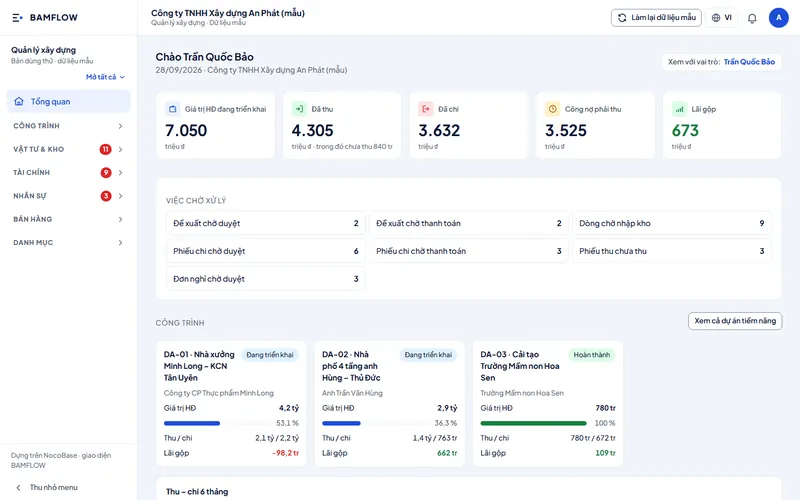
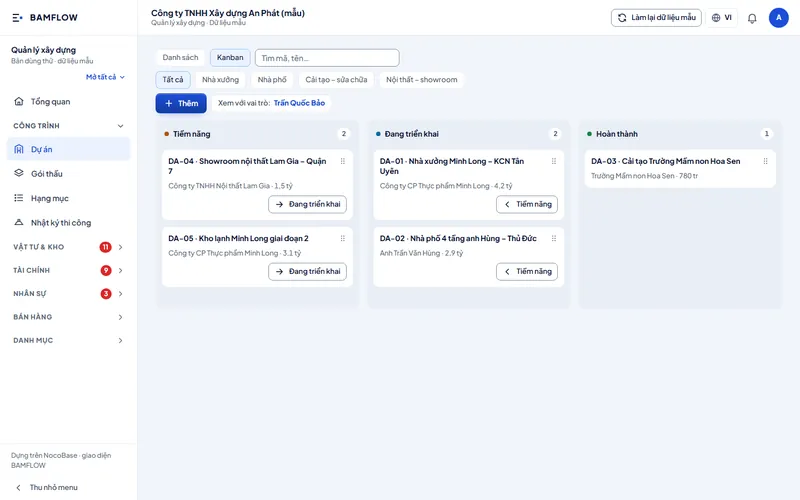
The Construction management app on a computer: the Overview screen with the value of active contracts, money received, money spent, receivables, gross profit, pending tasks and a card for each project
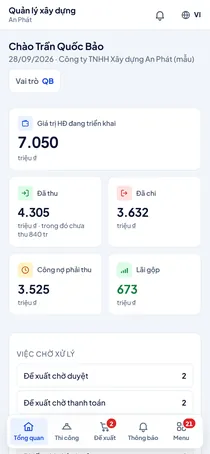
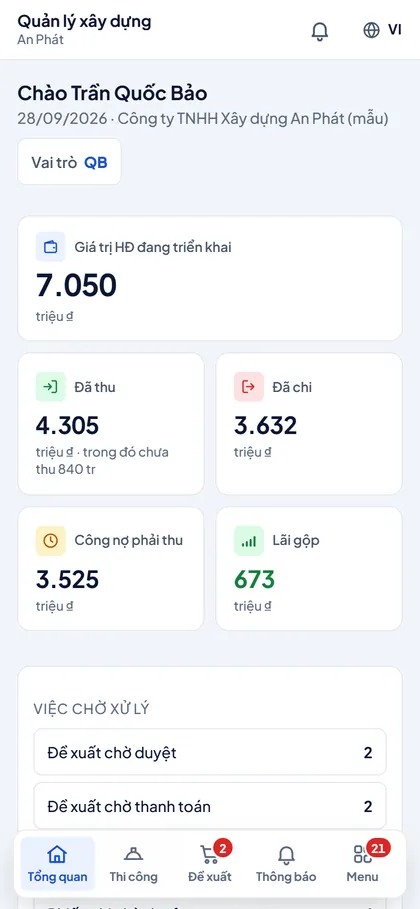
The Construction management app on a phone: the Overview screen with contract value, money received, money spent, receivables, gross profit and pending tasks

Projects & tasks

Construction management

Track each project from contract, work items and materials to cash flow and gross profit.

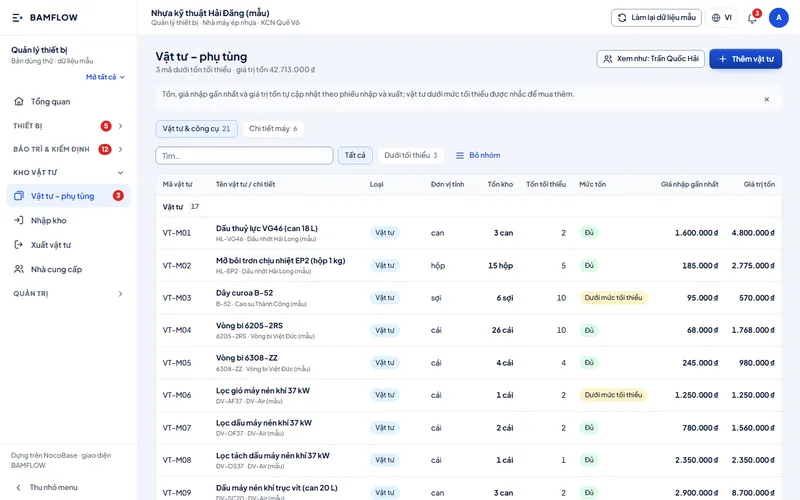
The Equipment management app on a computer: the Overview screen with machines down, repair tickets waiting, upcoming maintenance, inspections due, repair costs, spare parts below minimum stock and today's jobs
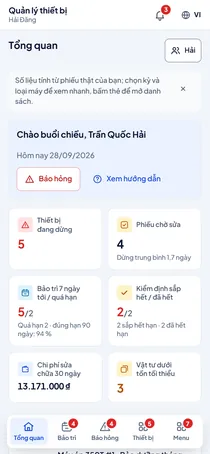
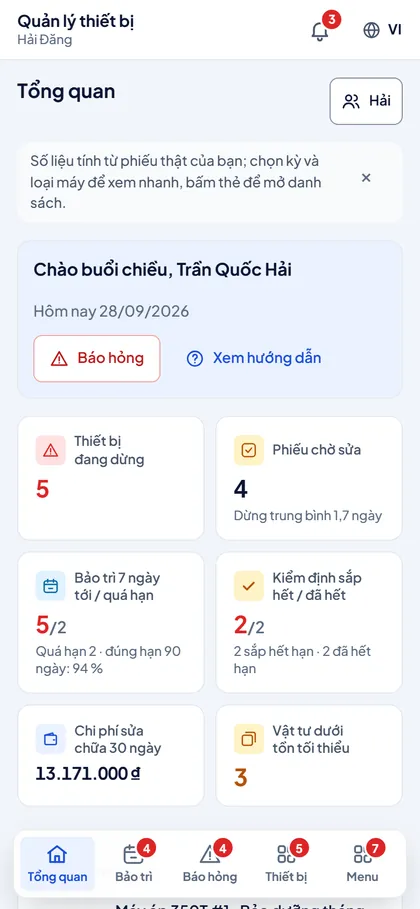
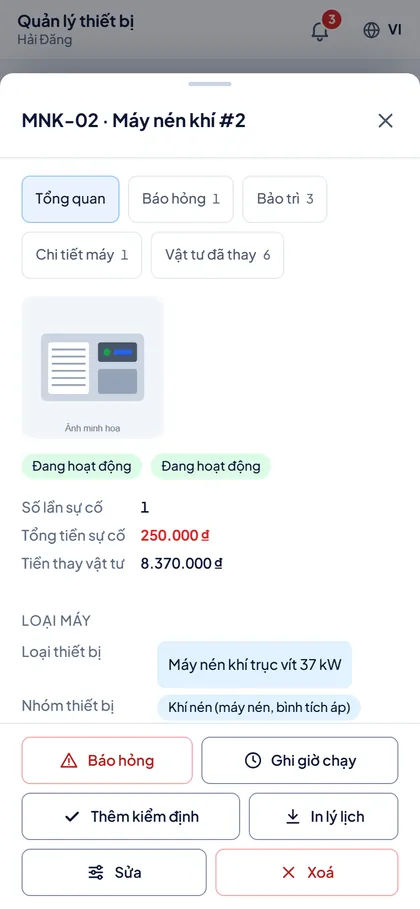
The Equipment management app on a phone: the Overview screen with a Report breakdown button and tiles for machines down, repair tickets waiting, upcoming maintenance, inspections, repair costs and spare parts

Equipment maintenance

Equipment management

Machine histories, maintenance schedules, breakdowns and repairs, and a spare-parts store for the plant.

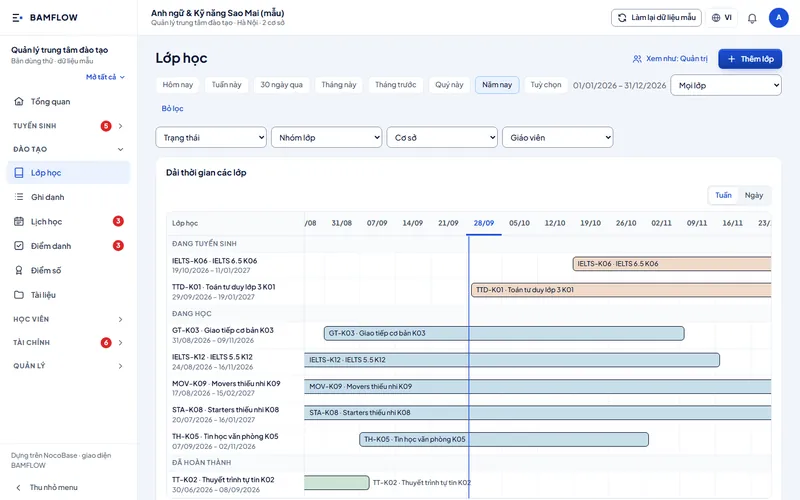
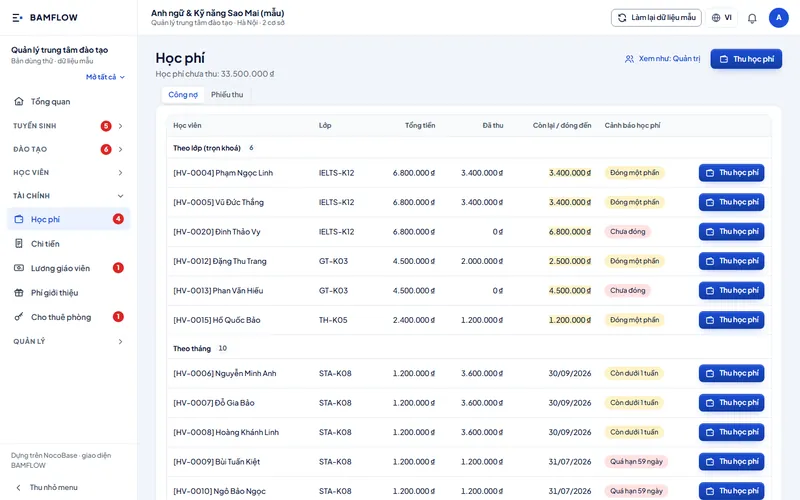
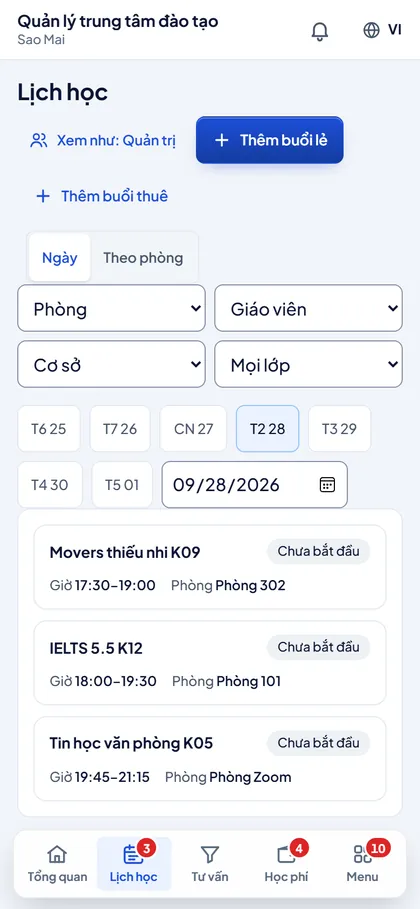
The Training centre management app on a computer: the Overview screen with active students, today's sessions, enquiries, revenue, income and expenses, unpaid fees, today's timetable and a call-back list
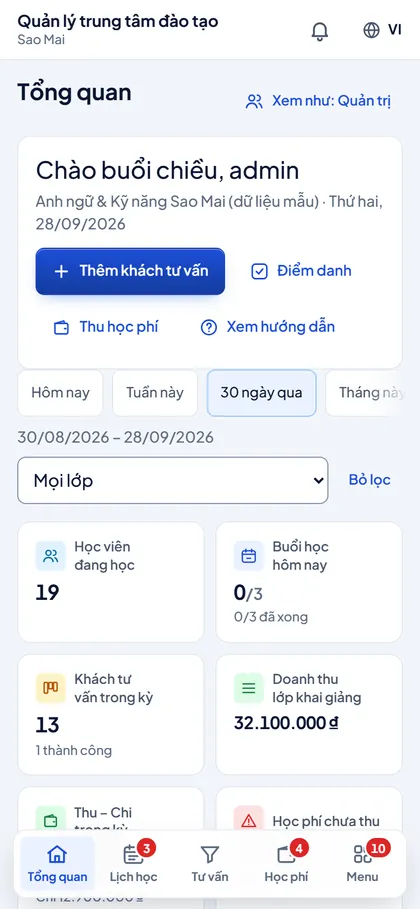
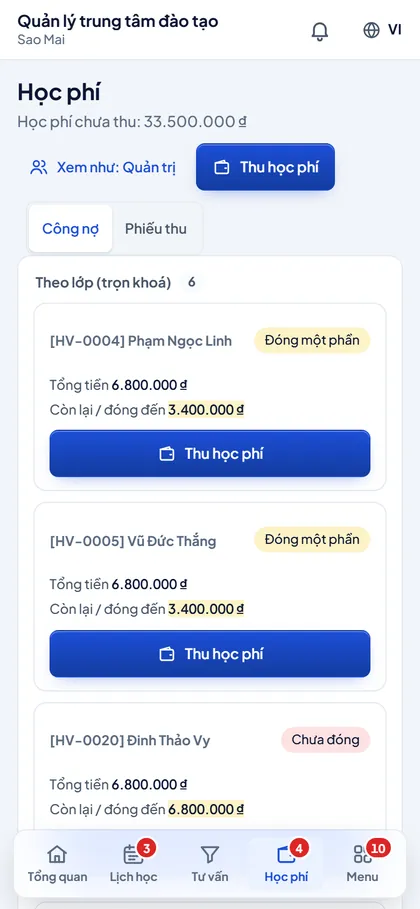
The Training centre management app on a phone: the Overview screen with Add enquiry, Attendance and Collect fees buttons and tiles for students, sessions, enquiries and revenue

Education

Training centre management

Enrolment enquiries, classes, timetables, attendance and fees for a training centre.

Other industries we have delivered

BAMFLOW discusses these directly, based on your company's processes.

Sales & CRM

  • Sales, receivables and payables, cash in and out
  • Retail and wholesale POS, barcode scanning, two price lists

Orders & KPIs

  • Orders and task assignment
  • Staff KPIs, automatic performance reports

Another industry? BAMFLOW reviews your processes before proposing an app and a platform.

App details

Warehousing

Inventory management

Stock in, out and on hand by batch and expiry date across warehouses, linked to orders.
The Inventory management app on a computer: the Overview screen with stock value, items below minimum, batches close to expiry, orders not fully delivered and this month's stock in and out
Stock value and alerts at a glance Stock value, items below minimum, batches close to expiry and undelivered orders on one screen.
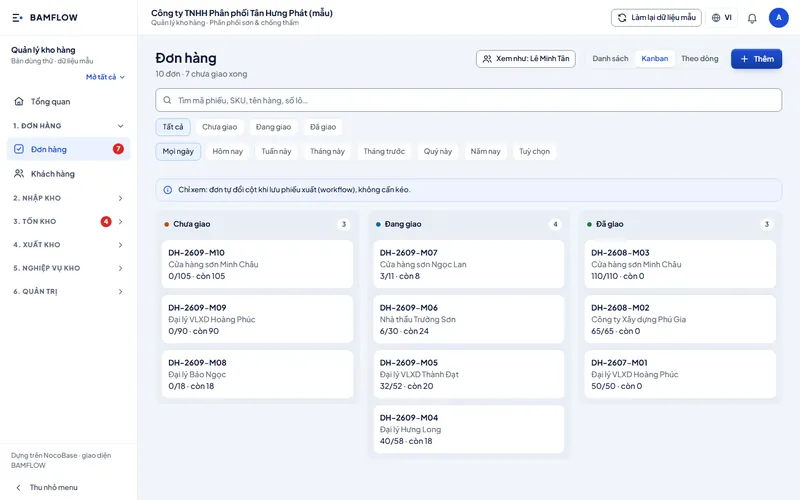
The Orders screen as a Kanban board with three columns, Not delivered, Delivering and Delivered; each card shows the order number, customer and quantity delivered against quantity ordered
Orders by delivery status Each order is a card in Not delivered, Delivering or Delivered, with quantity delivered against quantity ordered.
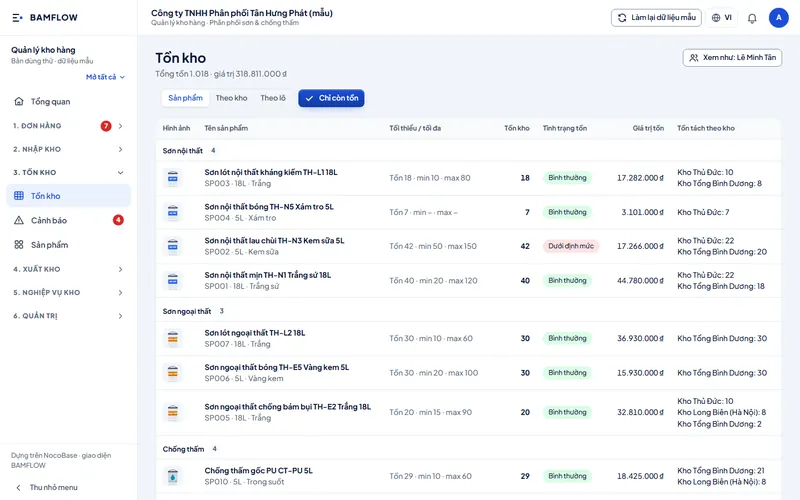
The Stock screen grouped by paint type: each product has minimum and maximum stock, a Normal or Below minimum status, stock value and stock per warehouse
Stock by product and warehouse Minimum, maximum and stock value for each product, split by warehouse; items below minimum are flagged.
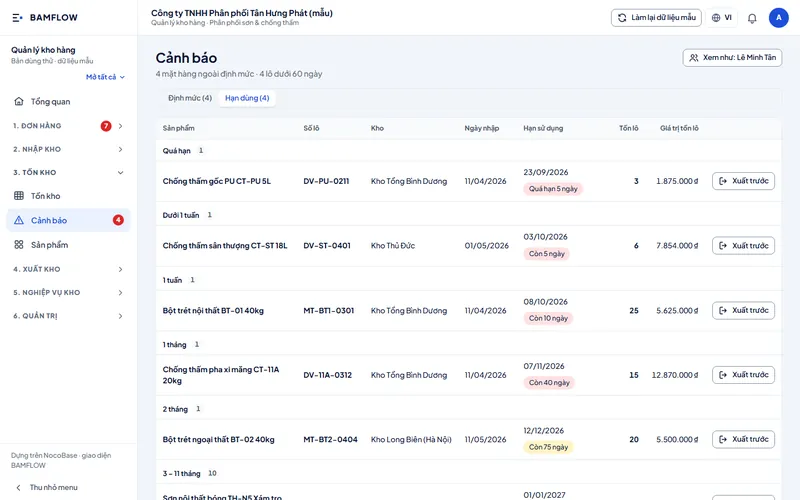
The Expiry alerts screen: batches sorted into Expired, Under 1 week, 1 week and 1 month, with warehouse, receipt date, batch stock and an Issue first button
Batches near expiry, issue first Batches sorted by expired, under a week and a month, with an Issue first button for stock to move out.
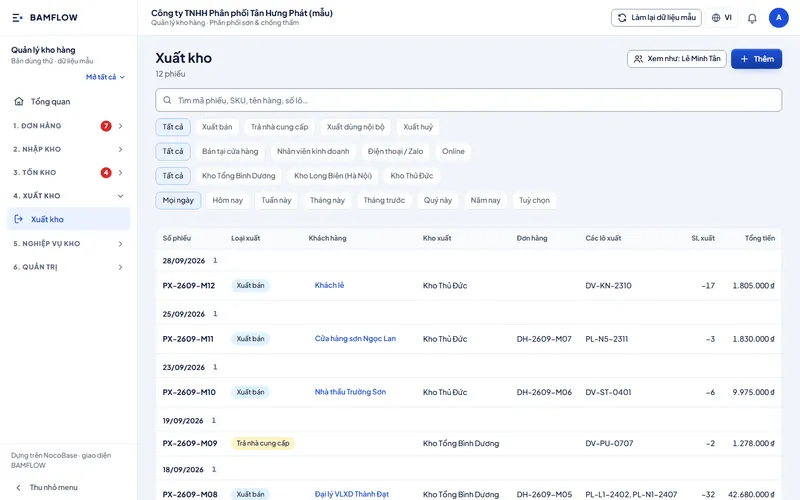
The Goods issue screen: issue slips grouped by date with issue type, customer, warehouse, order, batches issued, quantity and total
Goods issue slips by date Issue slips grouped by date, showing the customer, warehouse, order and batches issued.
The Inventory management app on a phone: the Overview screen with tiles for stock value, below minimum, batches close to expiry, undelivered orders, 30-day revenue and today's slips
Stock figures on the phone Stock value, below minimum, batches near expiry and undelivered orders, right there in the warehouse.
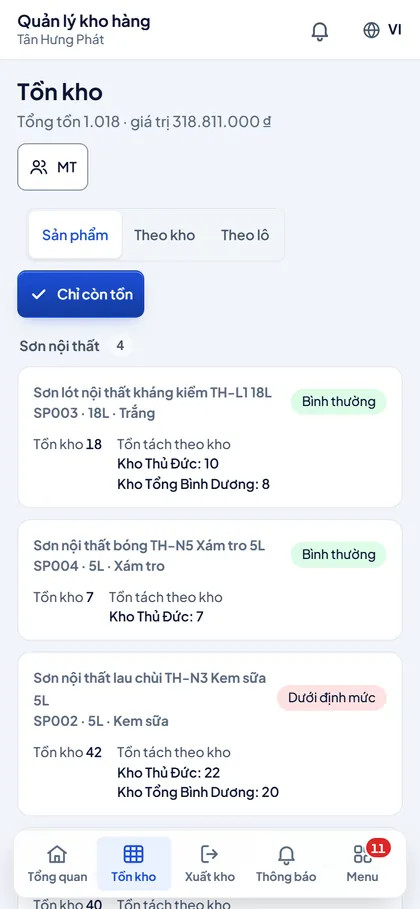
The Stock screen on a phone: each product with stock on hand, stock per warehouse and a Normal or Below minimum status
Check stock on the spot The storekeeper checks stock for each product, split by warehouse, with a Normal or Below minimum status.
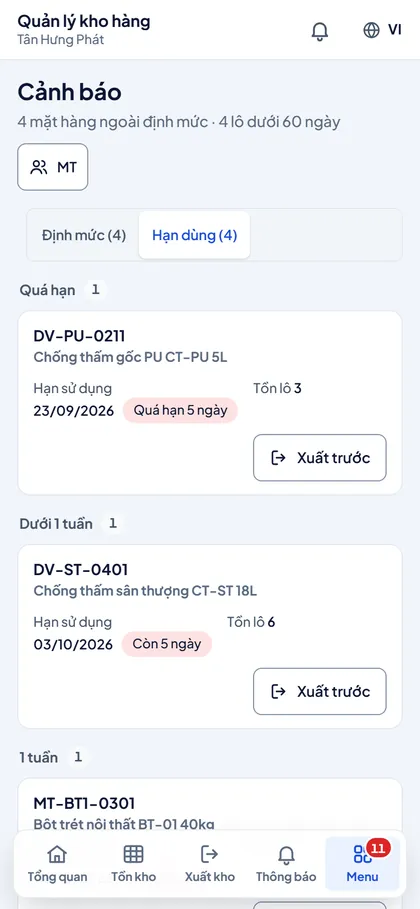
The Expiry alerts screen on a phone: a card per batch with the expiry date, days overdue or remaining, batch stock and an Issue first button
Expiry alerts for each batch One card per batch with its expiry date, days left or overdue, batch stock and an Issue first button.

The problem

Book stock differs from actual stock, batches near expiry only show up at stocktake, and you have to ask the storekeeper how far each order has been delivered.

What the app does

  • Stock by product, warehouse and batch
  • Goods issue picks the batch and order line; issuing more than is on hand is blocked
  • Orders change status automatically when an issue slip is saved
  • Alerts for items below minimum and batches near expiry
  • Stock in, out and on-hand reports by period
  • Permissions by warehouse; prices hidden from storekeepers

Roles in the app

  • Director
  • Accountant
  • Storekeeper

Platform

The sample app runs on NocoBase with sample data. For your business, BAMFLOW builds on NocoBase or AppSheet, depending on the problem.

Next app Make-to-order production

BAMFLOW builds it around your real processes, on NocoBase or AppSheet.

Manufacturing

Make-to-order production

From sales order to work order, production stages, materials and delivery.
The Make-to-order production app on a computer: the Overview screen with open orders, orders awaiting approval, lines without a work order, work orders in production, late plans and receivables
Orders, work orders and receivables Open and pending orders, lines without a work order, work in production, late plans and receivables.
The Production dispatch screen: stage columns Not started, Offset printing, Lamination, Die-cutting and creasing; each card is an order line with customer, product, quantity and days left
Order lines moving through stages Each order line is a card that moves across the stage columns, with customer, quantity and days left.
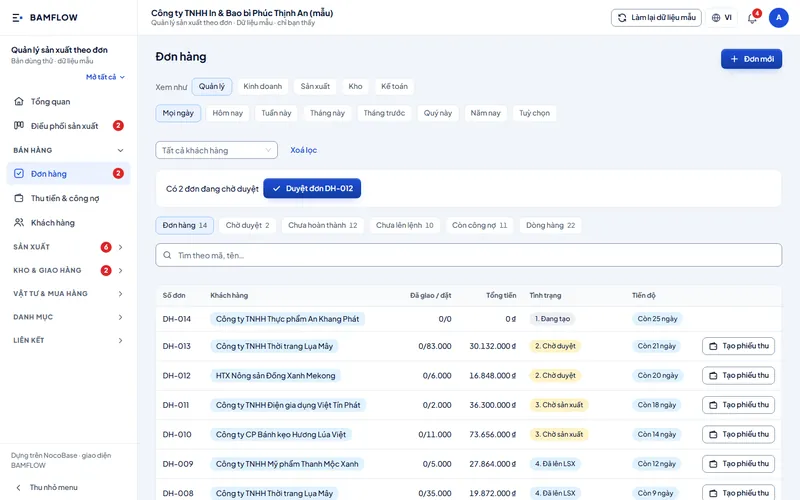
The Orders screen: orders with customer, quantity delivered against ordered, total, status from Draft to Work order created, and days left
Orders, status and progress Orders with quantity delivered against ordered, total value, approval status and days left.
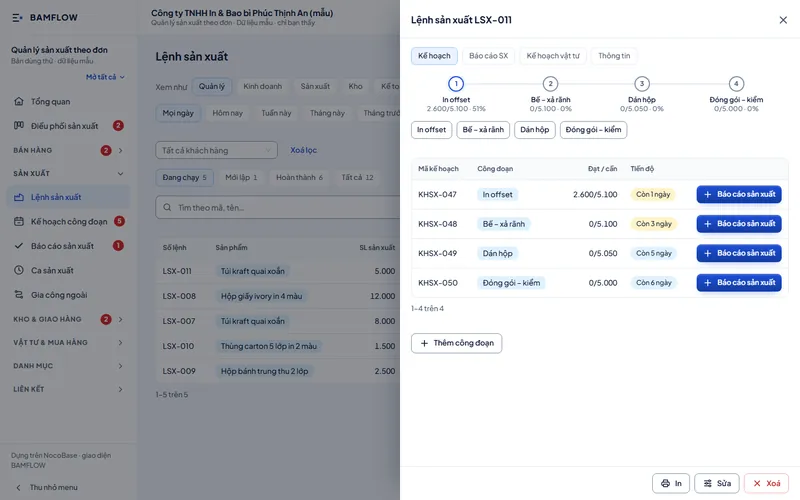
A work order open on the right: four stages, Offset printing, Die-cutting and creasing, Box gluing, Packing and inspection, with output achieved against target and a Production report button for each plan
Work orders split into stages Each work order is split into stages, each with output against target and a Production report button.
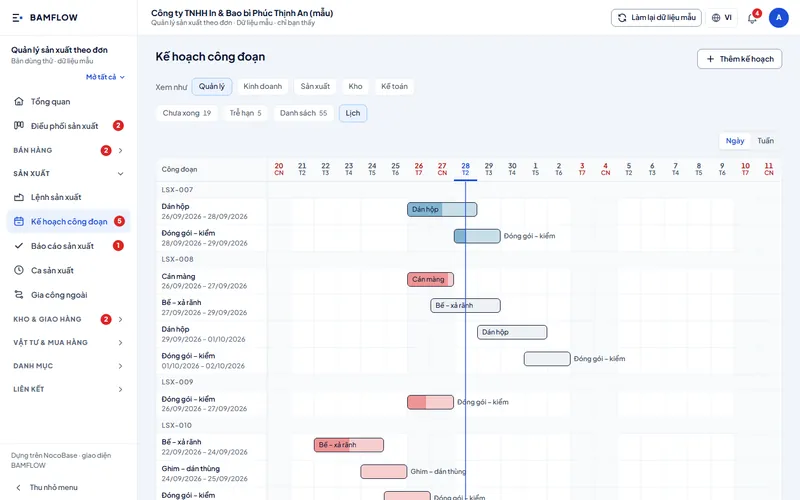
The Stage plan screen as a timeline for each work order; the vertical line is today and late stages are shown in red
Stage plans on a timeline Stage plans for each work order on a timeline; the vertical line is today and late work shows in red.
The Make-to-order production app on a phone: the Overview screen with open orders, orders awaiting approval, work orders in production, late plans, output achieved and receivables
Production figures on the phone Orders awaiting approval, work in production, late plans and output achieved, right on the shop floor.
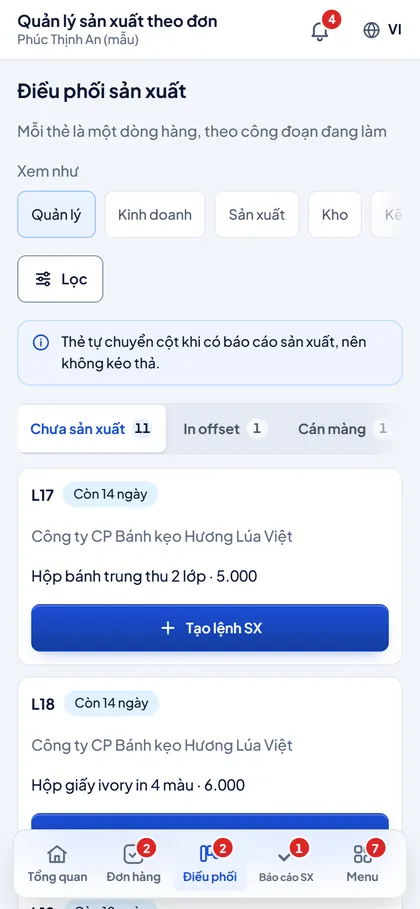
The Production dispatch screen on a phone: stage tabs and order-line cards with customer, product, quantity and a Create work order button
Dispatch from the shop floor Pick a stage, see a card for each order line and create a work order from the phone.
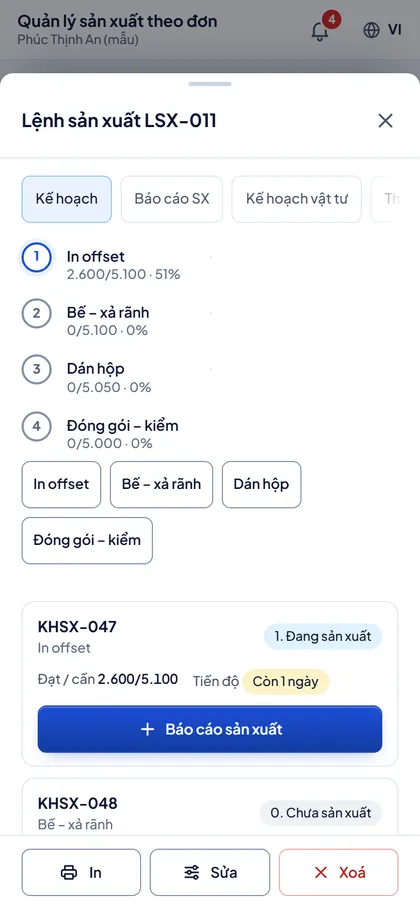
A work order on a phone: stage steps with percentage complete, plan cards and a Production report button
Report output for each stage Stage steps with percentage complete; production teams report output from their phones.
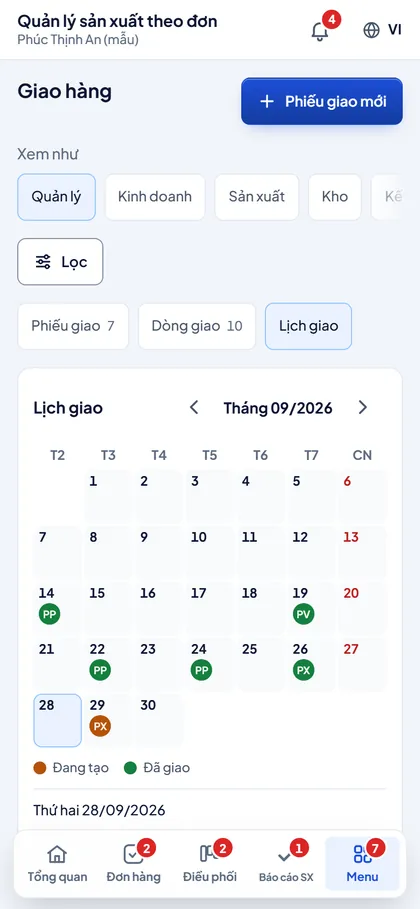
The Deliveries screen on a phone: a monthly calendar marking delivery notes, orange for draft and green for delivered
Monthly delivery calendar A monthly calendar marks each delivery note: orange is draft, green is delivered.

The problem

Orders, shop-floor plans and materials sit in separate files, so it is hard to tell which stage each order is at and which stage is running late.

What the app does

  • Orders with an approval step, delivery tracking and receivables
  • Dispatch board: each order line is a card by stage
  • Work orders split into stages, with output reported at each step
  • Stage plans on a timeline, late work in red
  • Material planning, material receipts and issues, subcontracting
  • Finished-goods store and delivery calendar

Roles in the app

  • Manager
  • Sales
  • Production
  • Warehouse
  • Accountant

Platform

The sample app runs on NocoBase with sample data. For your business, BAMFLOW builds on NocoBase or AppSheet, depending on the problem.

Next app Attendance & tasks

BAMFLOW builds it around your real processes, on NocoBase or AppSheet.

HR

Attendance & tasks

Clock in on the phone, assign tasks, approve leave and run payroll from days worked.
The Attendance & tasks app on a computer: the Overview screen with who is in, late arrivals, leave, requests awaiting approval, overdue tasks and a list of things to try
Today at a glance for managers Managers see who is in, who is late, who is on leave, which requests are pending and which tasks are overdue.
The Tasks screen as a Kanban board with three columns, To do, In progress and Done; each card shows the task type, time left or days late, and the follower
Assign and track tasks on Kanban Tasks in three columns, To do, In progress and Done; each card has a due date and a follower.
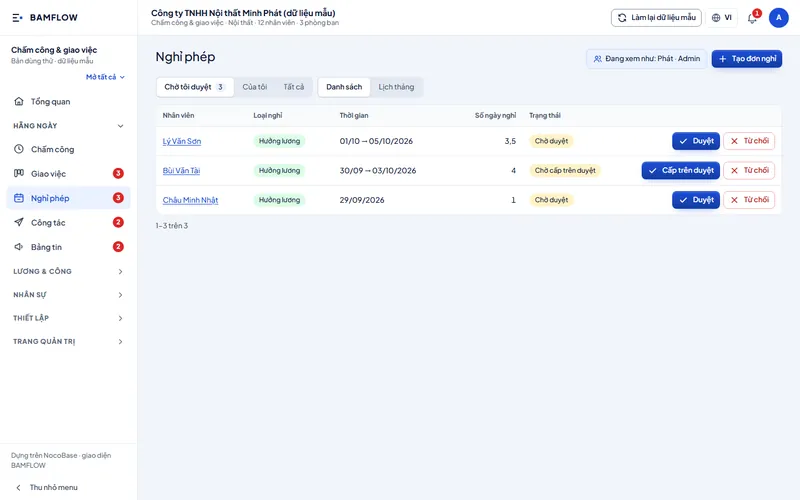
The Leave screen: requests awaiting approval with leave type, dates, number of days, a Pending or Pending senior approval status and Approve and Reject buttons
Approve or reject leave requests Each pending request shows the leave type, days and approval level; the manager taps Approve or Reject.
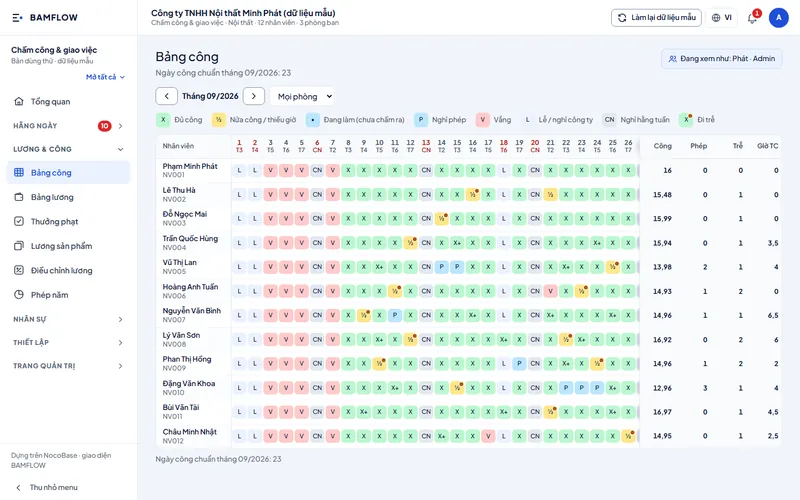
The monthly Timesheet screen: a day grid per employee with symbols for full day, half day, leave, absence, holiday and late, and totals for days worked, leave, late and overtime hours
Monthly timesheet built automatically The monthly timesheet is built from clock-ins: full day, half day, leave, late, overtime.
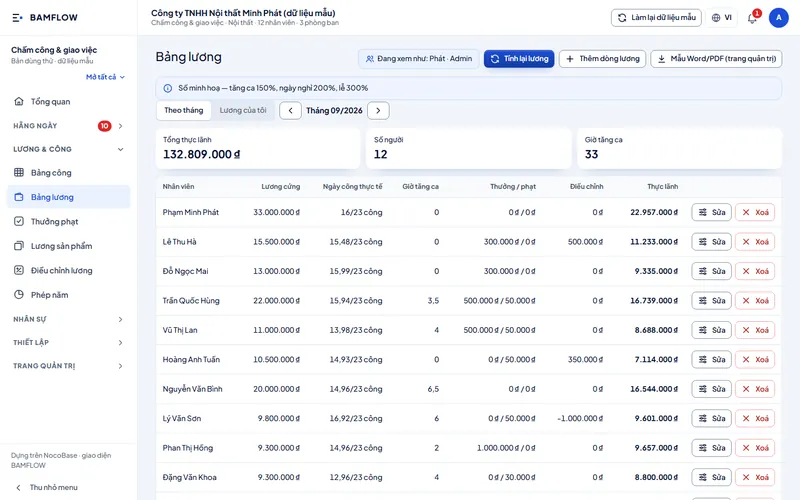
The monthly Payroll screen: total net pay, headcount, overtime hours and a payroll line per person with base salary, days worked, overtime, bonuses and deductions, adjustments and net pay
Payroll from days worked and overtime Pay is calculated from base salary, days worked, overtime, bonuses, deductions and adjustments.
The Attendance app on a phone: a round Clock in button, the current time, the shift and a clock-in location simulated in the sample app
One tap to clock in Staff tap Clock in with the time, shift and location; the sample app simulates the location.
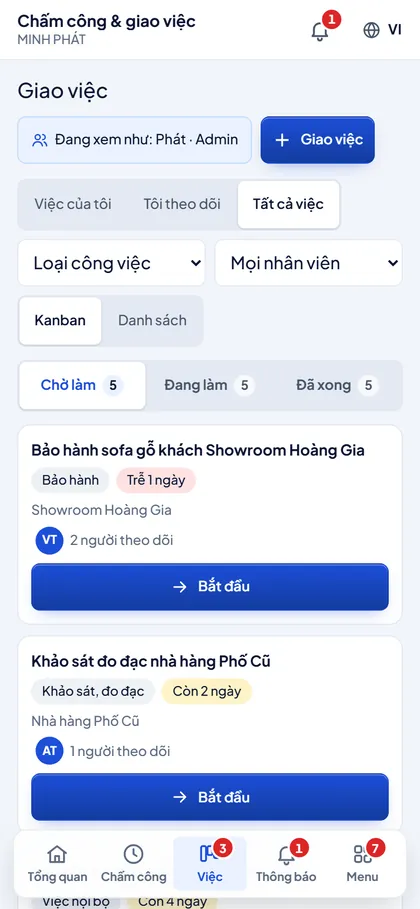
The Tasks screen on a phone: To do, In progress and Done tabs, and task cards with due date, follower and a Start button
Pick up a task and tap Start Tasks sit in To do, In progress and Done tabs; staff tap Start when they take a task.
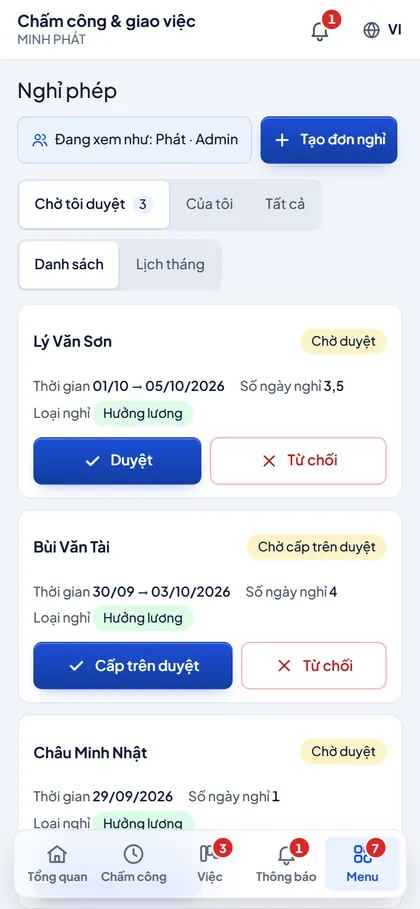
The Leave screen on a phone: leave request cards with dates, number of days, leave type and Approve and Reject buttons
Approve leave from the phone Managers see the dates, days and leave type, and approve requests right on the phone.
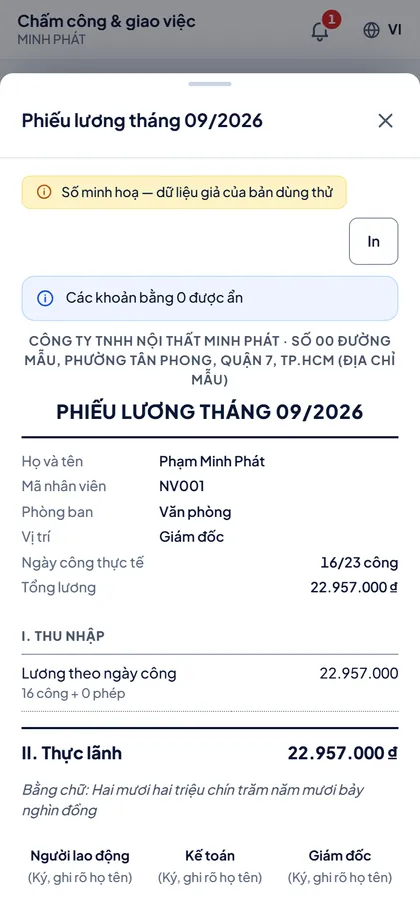
A monthly payslip on a phone: employee details, actual days worked, earnings and net pay in figures and in words; the amounts are sample data
Monthly payslip on the phone Staff see their days worked, earnings and net pay for the month; the figures are sample data.

The problem

Attendance is kept on a time clock or in a notebook and tasks are assigned by chat, so at month end the accountant pieces it together in Excel; items get missed and it takes a long time.

What the app does

  • Clock in and out on the phone with location and photo
  • Tasks on a Kanban board, with due dates and followers
  • Multi-level leave approval; long leave goes up to the next level
  • Monthly timesheet built from clock-ins
  • Payroll from days worked, overtime, bonuses and deductions; printable payslips
  • Permissions for Admin, Manager and Employee

Roles in the app

  • Admin
  • Department manager
  • Employee

Platform

The sample app runs on NocoBase with sample data. For your business, BAMFLOW builds on NocoBase or AppSheet, depending on the problem.

Next app HR management

BAMFLOW builds it around your real processes, on NocoBase or AppSheet.

HR

HR management

Employee records, contracts, leave and the HR team's tasks in one place.

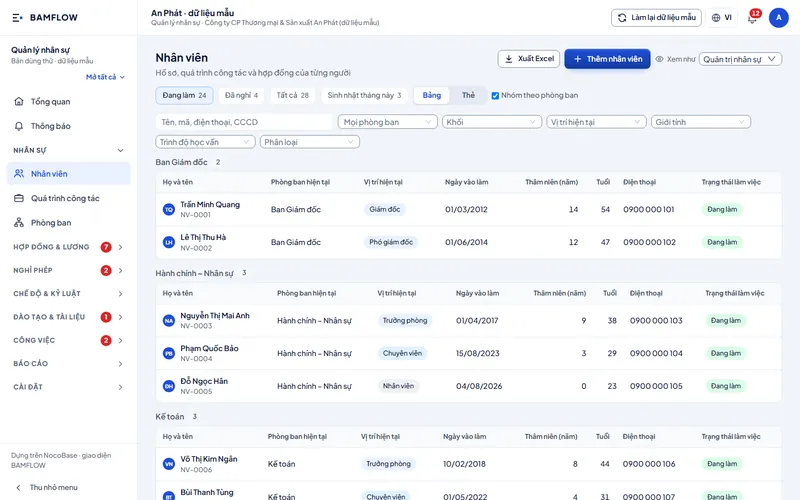
The HR management app on a computer: the Overview screen with total employees, active, left, contracts, leave days, items to watch and charts by age and department
HR overview and reminders Headcount, contracts, leave days, items to watch and charts by age and by department.
The Employees screen: records grouped by department with position, start date, length of service, age, phone and employment status; with filters and an Export to Excel button
Employee records by department Records grouped by department with position, start date, length of service and status; export to Excel.
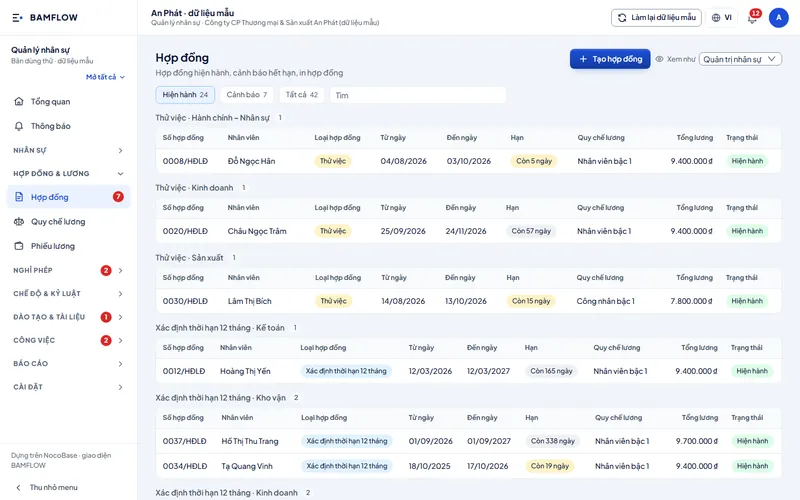
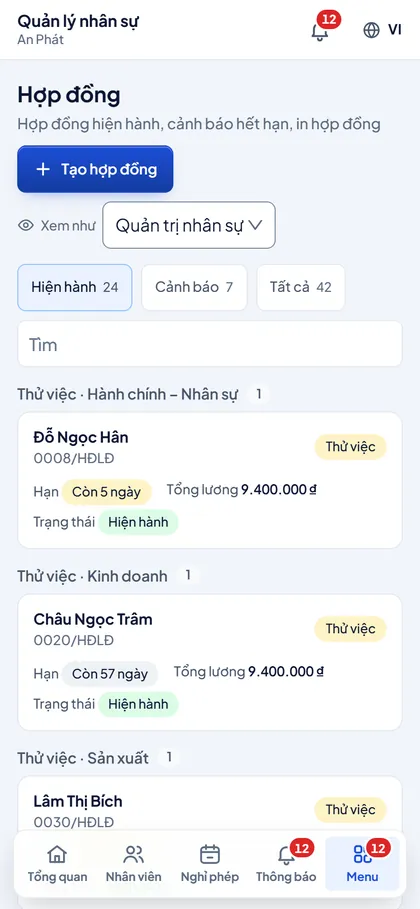
The Contracts screen: contracts grouped by type and department with contract number, term, days remaining, pay scheme, total pay and status
Current contracts and time left Contracts by type and department, with days remaining, pay scheme and total pay.
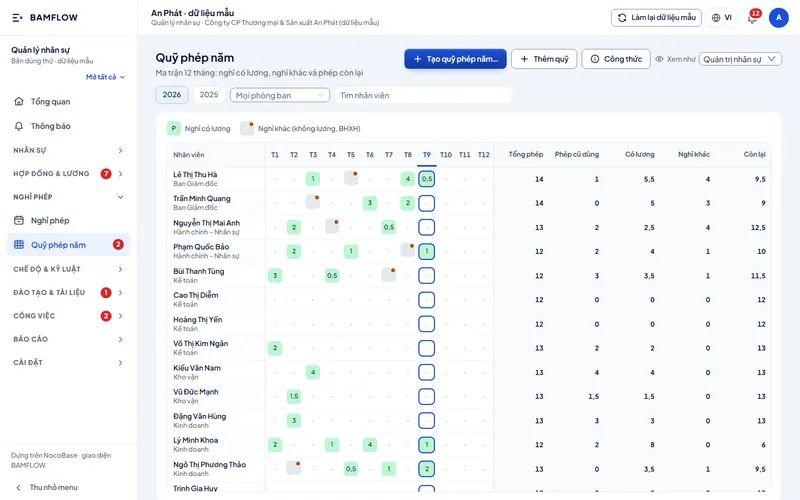
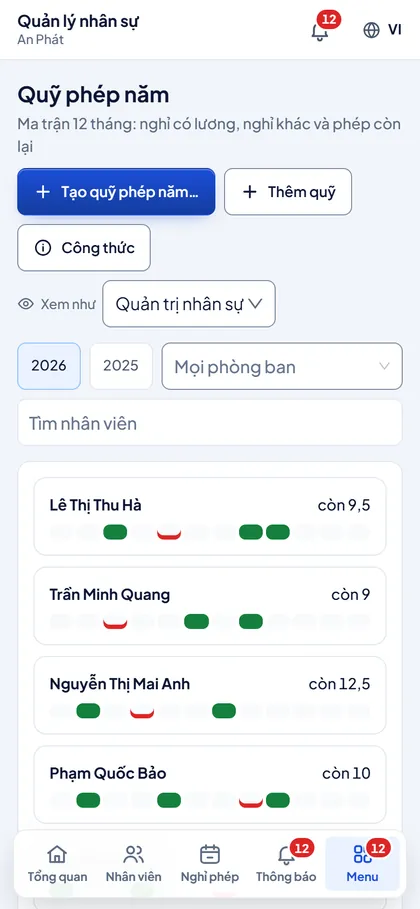
The annual Leave balance screen: a 12-month grid for each employee with paid leave, other leave and columns for total, used and remaining
Annual leave over twelve months A twelve-month grid for each person: paid leave, other leave, days used and days left.
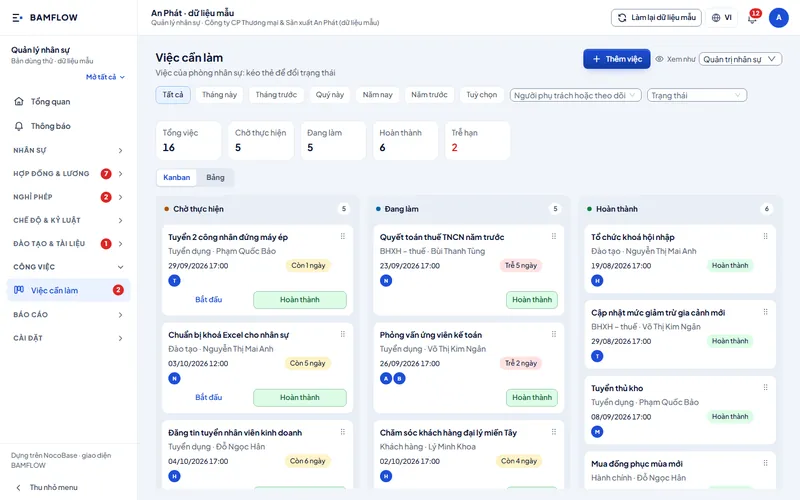
The To-do screen: counters for total, to do, in progress, done and overdue, and a three-column Kanban board with due dates and owners
HR team tasks on Kanban The HR team's tasks on a three-column Kanban board, with due dates, owners and the overdue count.
The HR management app on a phone: the Overview screen with total employees, active, left, contracts and leave days
HR figures on the phone Total employees, active, left, contracts and leave days on one screen.
The Contracts screen on a phone: a probation contract card with contract number, time remaining, total pay and a Current status
Contracts and days remaining One card per contract with its number, time remaining, total pay and status.
The annual Leave balance screen on a phone: one card per employee with a 12-month strip and the leave days remaining
Leave left for each person One card per employee with a twelve-month strip and the leave days remaining.
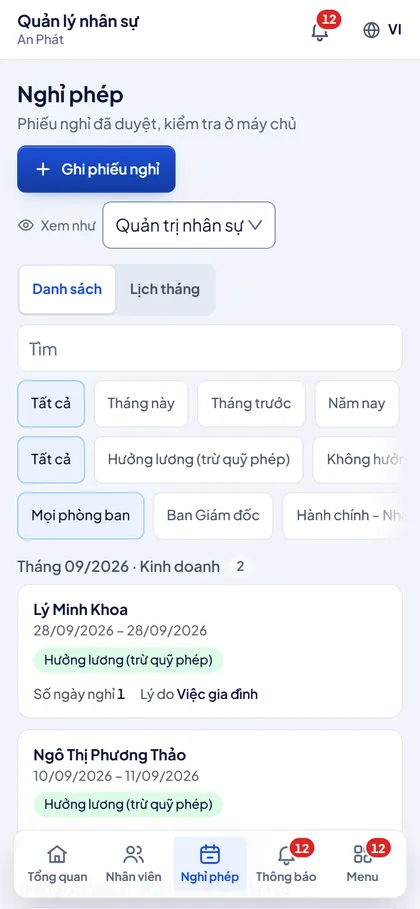
The Leave screen on a phone: filters by period, leave type and department, and leave slip cards with dates, leave type, number of days and reason
Leave slips by month and department Filter leave slips by period, leave type and department; each slip shows the dates, days and reason.

The problem

Records, contracts and annual leave are scattered across many files; expiring contracts or remaining leave usually come to light only when someone asks.

What the app does

  • Employee records grouped by department, export to Excel
  • Contracts linked to pay schemes, with expiry alerts
  • Leave slips check the leave balance before saving
  • Annual leave balance: a 12-month grid for the whole company
  • Reminders: birthdays, end of probation, overdue tasks
  • HR team to-dos on a Kanban board

Roles in the app

  • HR admin
  • HR and admin officer
  • Report viewer

Platform

The sample app runs on NocoBase with sample data. For your business, BAMFLOW builds on NocoBase or AppSheet, depending on the problem.

Next app Construction management

BAMFLOW builds it around your real processes, on NocoBase or AppSheet.

Projects & tasks

Construction management

Track each project from contract, work items and materials to cash flow and gross profit.
The Construction management app on a computer: the Overview screen with the value of active contracts, money received, money spent, receivables, gross profit, pending tasks and a card for each project
Contracts, cash flow and gross profit Contract value, money received and spent, receivables, gross profit and pending tasks.
The Projects screen as a Kanban board with three columns, Prospect, In progress and Completed; each card shows the project code, client and value
Projects by stage Projects in Prospect, In progress and Completed columns; each card shows the client and value.
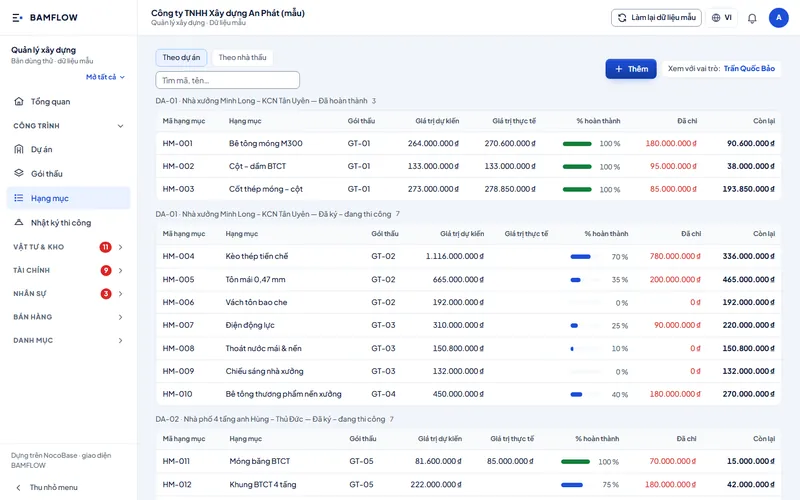
The Work items screen by project: item code, bid package, planned and actual value, a percentage-complete bar, amount spent and remaining
Progress and cost of each work item Work items by bid package with planned and actual value, percentage complete and amount spent.
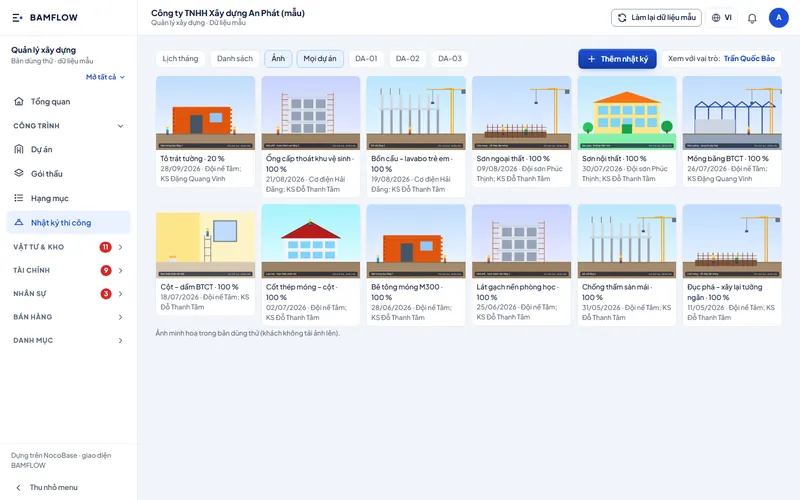
The Site log screen as a photo grid: each tile is a work-item update with percentage complete, date, site team and engineer; the photos are placeholders in the sample app
Site log with photos of each item Each work-item update has a photo, percentage complete, date and site team; the photos are placeholders.
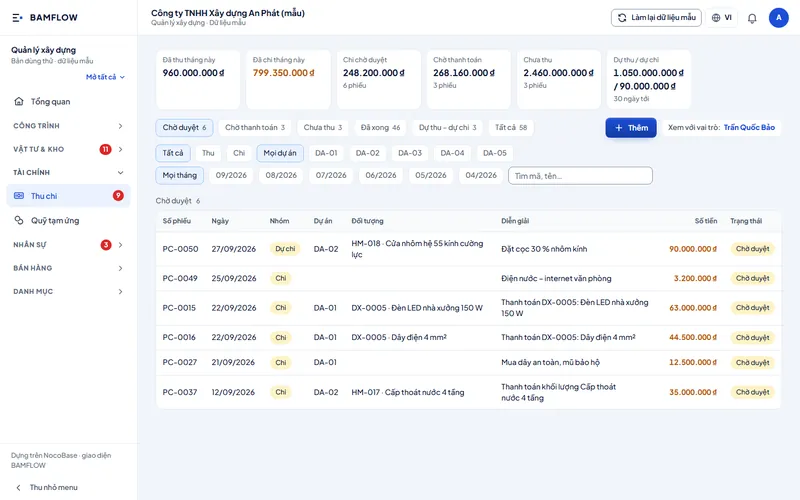
The Cash flow screen: totals for received, spent, awaiting approval, awaiting payment, not yet received, forecast income and spending, and payment slips awaiting approval by project
Payments awaiting approval Totals received, spent, awaiting approval and awaiting payment, plus payment slips to approve by project.
The Construction management app on a phone: the Overview screen with contract value, money received, money spent, receivables, gross profit and pending tasks
Project figures on the phone Contract value, money received and spent, gross profit and pending tasks, right on the building site.
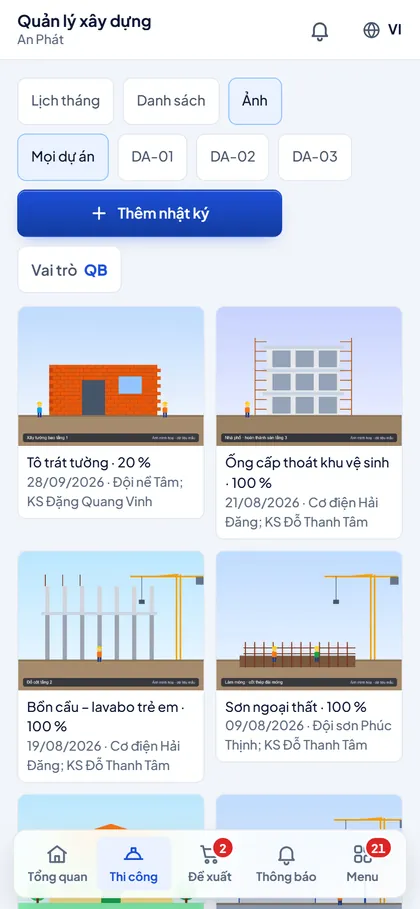
The Site log screen on a phone: a photo grid of work items with percentage complete, date and site team; the photos are placeholders in the sample app
Log site work on the spot Log each work item with a photo, percentage complete and site team; the photos are placeholders.
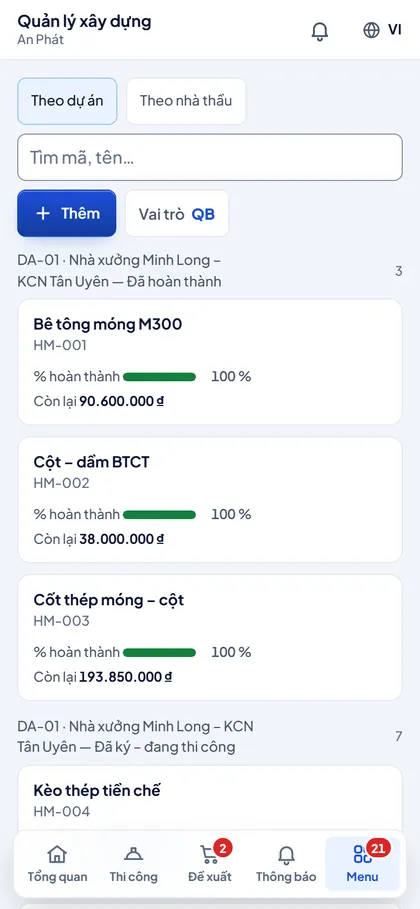
The Work items screen on a phone: work-item cards with a percentage-complete bar and the amount remaining
Progress of each work item One card per work item with a percentage-complete bar and the amount remaining.
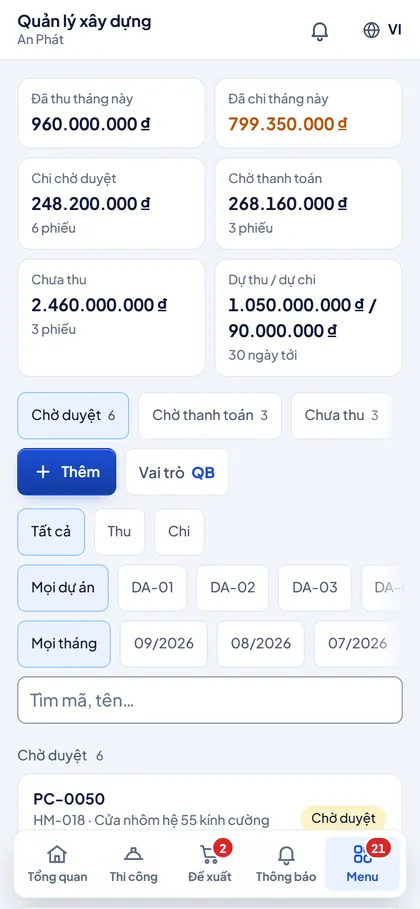
The Cash flow screen on a phone: tiles for received, spent, awaiting approval, awaiting payment, not yet received and forecast income and spending
Cash flow and pending slips Received, spent, awaiting approval, awaiting payment and forecast income and spending across projects.

The problem

Each project has its own work items, materials and cash flow; totalling them by hand makes it hard to spot early which project is spending more than it takes in.

What the app does

  • Projects by stage, with contract value and gross profit
  • Work items by bid package, percentage complete and amount spent
  • Site log for each work item, with site photos
  • Material requests through approval steps, material receipts
  • Cash flow, advance funds and slips awaiting approval
  • Leave and payroll for site teams

Roles in the app

  • Director
  • Chief accountant
  • Site manager
  • Storekeeper

Platform

The sample app runs on NocoBase with sample data. For your business, BAMFLOW builds on NocoBase or AppSheet, depending on the problem.

Next app Equipment management

BAMFLOW builds it around your real processes, on NocoBase or AppSheet.

Equipment maintenance

Equipment management

Machine histories, maintenance schedules, breakdowns and repairs, and a spare-parts store for the plant.
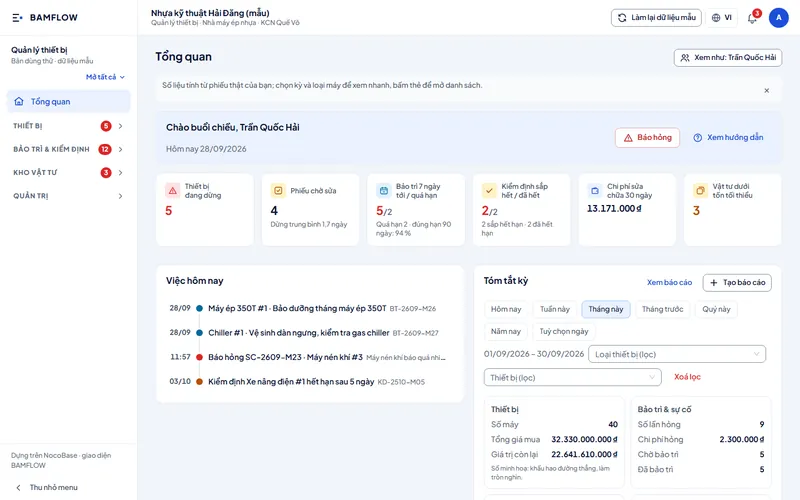
The Equipment management app on a computer: the Overview screen with machines down, repair tickets waiting, upcoming maintenance, inspections due, repair costs, spare parts below minimum stock and today's jobs
Machines down, repairs waiting Machines down, repair tickets waiting, upcoming maintenance, inspections due soon and parts below minimum.
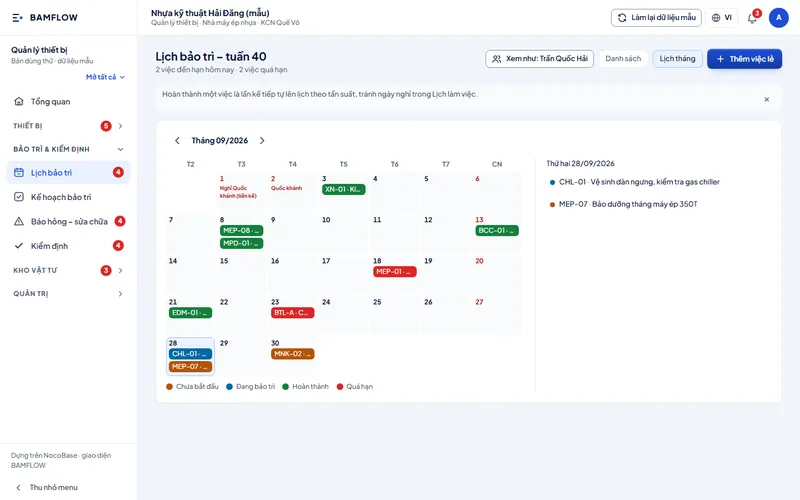
The Maintenance calendar as a month view: each maintenance job is a coloured label by status, Not started, In maintenance, Done or Overdue, with public holidays marked
Monthly maintenance calendar Each maintenance job is a colour label by status on a month calendar, with public holidays marked.
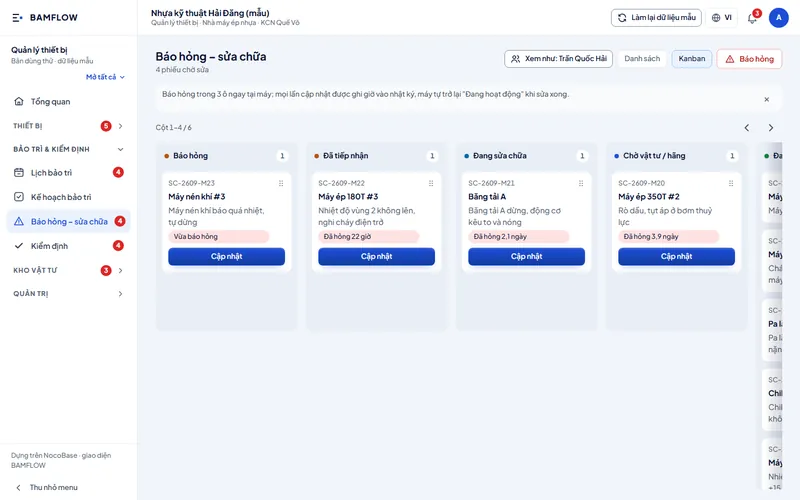
The Breakdowns and repairs screen as a Kanban board: columns Reported, Received, Under repair and Waiting for parts; each card shows the ticket number, machine, condition, downtime and an Update button
Breakdowns and repairs on Kanban Tickets move through Reported, Received, Under repair and Waiting for parts, with machine downtime.
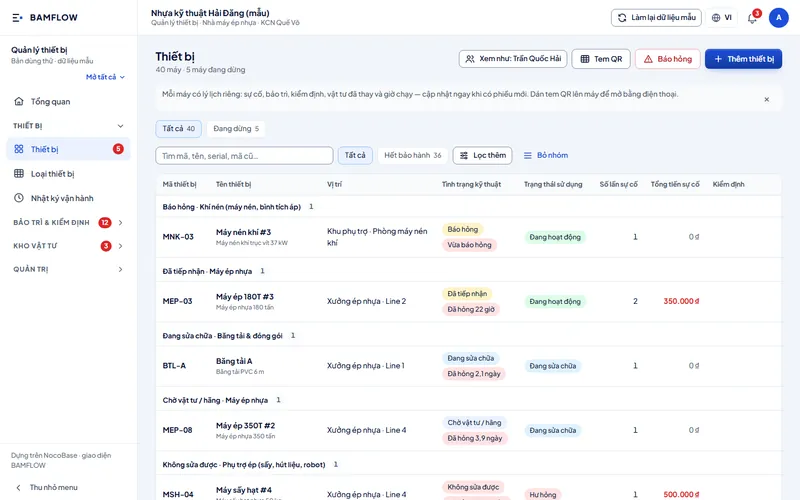
The Equipment screen: machines grouped by technical condition with location, usage status, number of incidents and total incident cost; with QR label and Report breakdown buttons
Equipment list and condition Machines grouped by technical condition with location, incident count, incident cost and a QR label button.
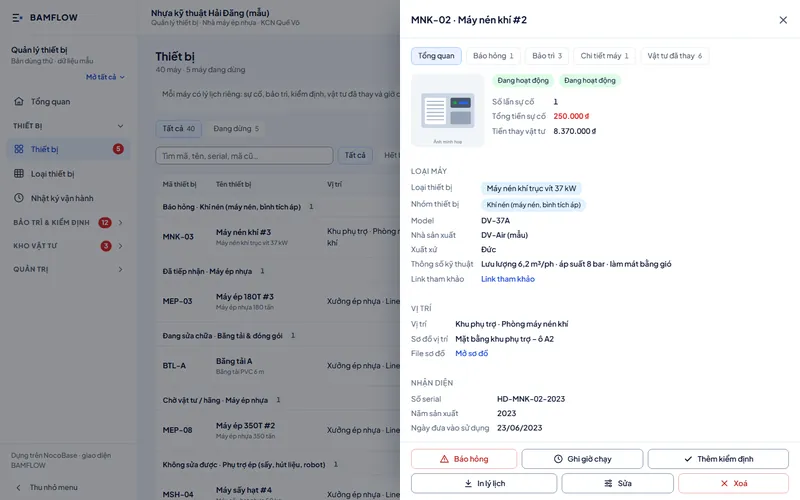
The history of an air compressor open on the right: Overview, Breakdowns, Maintenance, Machine details and Parts replaced tabs; machine type, location, identification and Report breakdown, Log run hours and Add inspection buttons
Machine history: type, location, cost Each machine's breakdowns, maintenance and parts replaced, with Report breakdown and Log run hours buttons.
The Spare parts screen: part code, name, unit, stock, minimum stock, an Enough or Below minimum level, latest purchase price and stock value
Spare parts and stock levels Stock, minimum stock, stock level and stock value for each spare part.
The Equipment management app on a phone: the Overview screen with a Report breakdown button and tiles for machines down, repair tickets waiting, upcoming maintenance, inspections, repair costs and spare parts
Report breakdown, always at hand The Report breakdown button sits at the top, next to machines down, repairs waiting and maintenance.
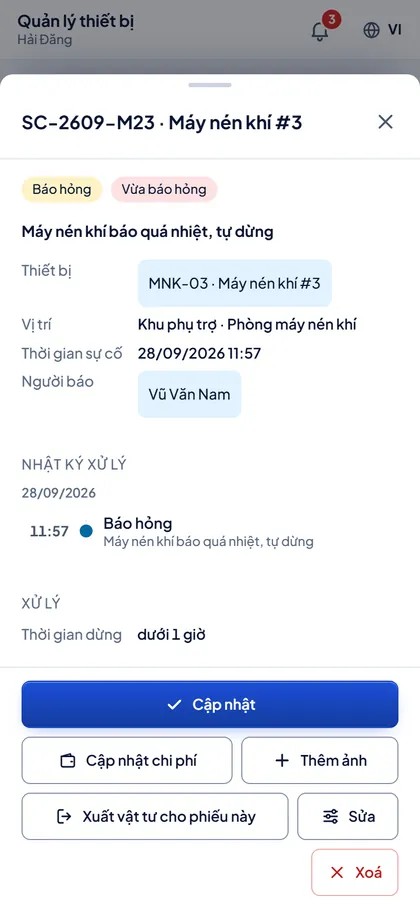
A breakdown ticket on a phone: status, machine condition, equipment, location, incident time, reporter, repair log and an Update button
Breakdown ticket and repair log Machine condition, location, incident time, reporter and the repair log for each ticket.
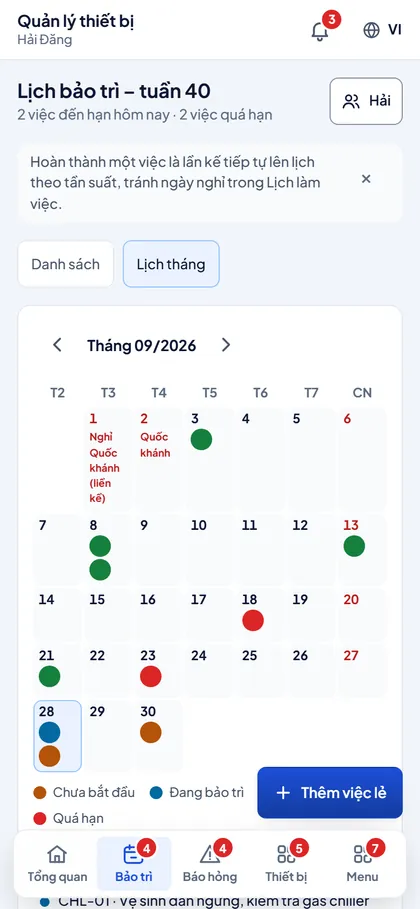
The Maintenance calendar on a phone: a month calendar with coloured dots by job status and public holidays
Maintenance calendar on the phone A month calendar with coloured dots by maintenance job status and public holidays.
A machine history on a phone: breakdown, maintenance and parts-replaced tabs, incident count, cost and Report breakdown, Log run hours and Add inspection buttons
Machine history and quick actions Open a machine's history on the phone: incident count, cost and parts replaced.

The problem

Breakdowns are reported by word of mouth and the maintenance schedule lives in a notebook, so nobody knows which machines are down, for how long, or which parts were replaced.

What the app does

  • History of each machine: incidents, maintenance, parts replaced
  • Report breakdowns from the phone and track them on a repair Kanban
  • When a maintenance job is done, the next one is scheduled automatically
  • Inspection reminders before they expire
  • Spare-parts store with below-minimum alerts
  • QR labels on machines open their history on a phone

Roles in the app

  • Manager
  • Technician
  • Storekeeper
  • Operations team lead
  • Accountant

Platform

The sample app runs on NocoBase with sample data. For your business, BAMFLOW builds on NocoBase or AppSheet, depending on the problem.

Next app Training centre management

BAMFLOW builds it around your real processes, on NocoBase or AppSheet.

Education

Training centre management

Enrolment enquiries, classes, timetables, attendance and fees for a training centre.
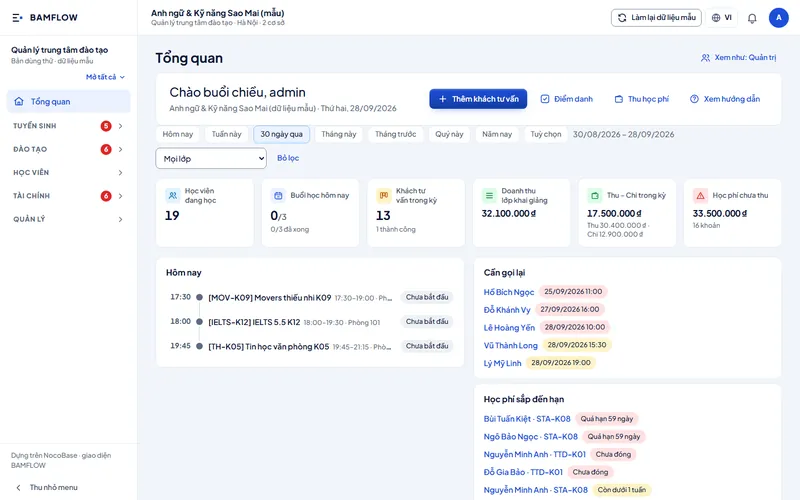
The Training centre management app on a computer: the Overview screen with active students, today's sessions, enquiries, revenue, income and expenses, unpaid fees, today's timetable and a call-back list
Sessions, enquiries and fees at a glance Active students, today's sessions, enquiries, unpaid fees and a list of people to call back.
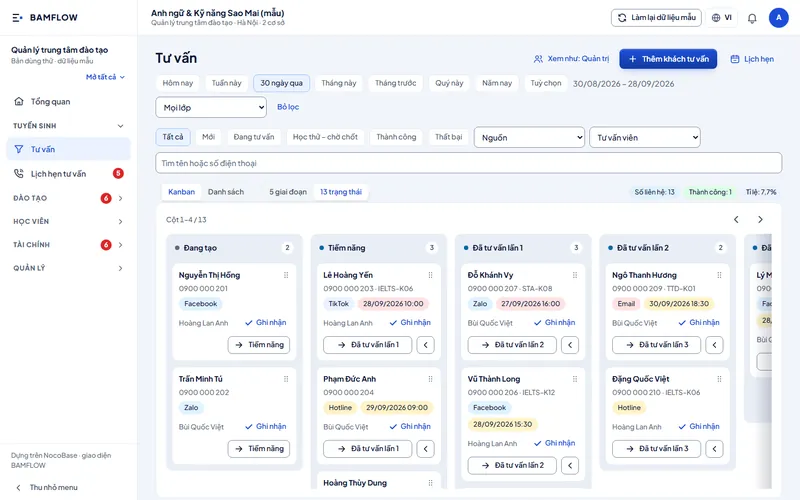
The Enquiries screen as a Kanban board: columns Draft, Prospect, First consultation and Second consultation; each card shows the contact, source, appointment, adviser and a next-step button
Enquiries by stage Each prospect is a card with source, appointment and adviser, moved on after each consultation.
The Classes screen as a timeline: classes grouped by Enrolling, In progress and Completed; the vertical line is the current week
Classes on a timeline Classes grouped by Enrolling, In progress and Completed; the vertical line is the current week.
The Fees screen: balances by class and month with total, paid, remaining or due date, Partly paid, Unpaid and Overdue warnings and a Collect fees button
Unpaid fees by student Balances by class and month: paid, remaining, due date, overdue warnings and a Collect fees button.
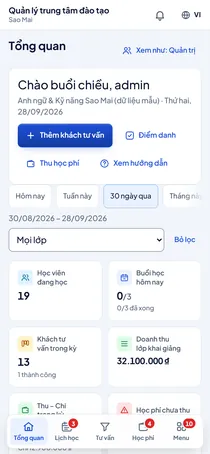
The Training centre management app on a phone: the Overview screen with Add enquiry, Attendance and Collect fees buttons and tiles for students, sessions, enquiries and revenue
The centre's day at a glance Add enquiry, Attendance and Collect fees buttons, with student, session and revenue counts.
The Timetable screen on a phone: a date picker and the list of sessions with time, room and status
Sessions of the day Pick a date to see the sessions with time, room and status.
The Fees screen on a phone: student cards with total, balance, a Partly paid or Unpaid status and a Collect fees button
Collect fees from the phone One card per student with total, balance, payment status and a Collect fees button.

The problem

Enquiries are written in a notebook and class schedules and fees sit in several spreadsheets, so it is hard to know who needs a call back and who has not paid.

What the app does

  • Enrolment enquiries on a Kanban board by stage, with call-back appointments
  • Classes on a timeline from start to finish
  • Weekly timetable by room and teacher
  • Attendance per session, grades, class materials
  • Fees, balances, receipts; teacher pay
  • Permissions by role and by branch

Roles in the app

  • Admin
  • Branch manager
  • Teacher
  • Adviser
  • Accountant

Platform

The sample app runs on NocoBase with sample data. For your business, BAMFLOW builds on NocoBase or AppSheet, depending on the problem.

Next app Inventory management

BAMFLOW builds it around your real processes, on NocoBase or AppSheet.

Clients running BAMFLOW apps

A selection of the 150+ business clients running apps delivered by BAMFLOW.

  • SSVN
  • Sigen
  • Menglish
  • Ecotech
  • Coex
  • Winedu
  • Gems
  • Taodo Group
  • Vmono
  • STG
  • Toolmark
  • RealEstate
  • VNG Real Estate
  • G-SMART
  • Dana Seo
  • and many more

How a project is delivered

The BAMFLOW method
  1. 1

    Discovery

    Pinpoint bottlenecks with the people who do the work.

  2. 2

    Design

    Data, roles and approval flows.

  3. 3

    Build

    A first version runs on real data.

  4. 4

    Pilot

    With real users, adjusted to their feedback.

  5. 5

    Handover

    Train the person who will own the app in-house.

We set specific timelines after the discovery step. BAMFLOW does not promise a number of weeks before it understands your problem.

An app for your business

Tell us how your processes run today. After discovery, BAMFLOW recommends the right platform and approach.

Message us on Zalo: 0986 238 723